Reports
Reports turns your orders, stock and visitors into numbers you can act on.
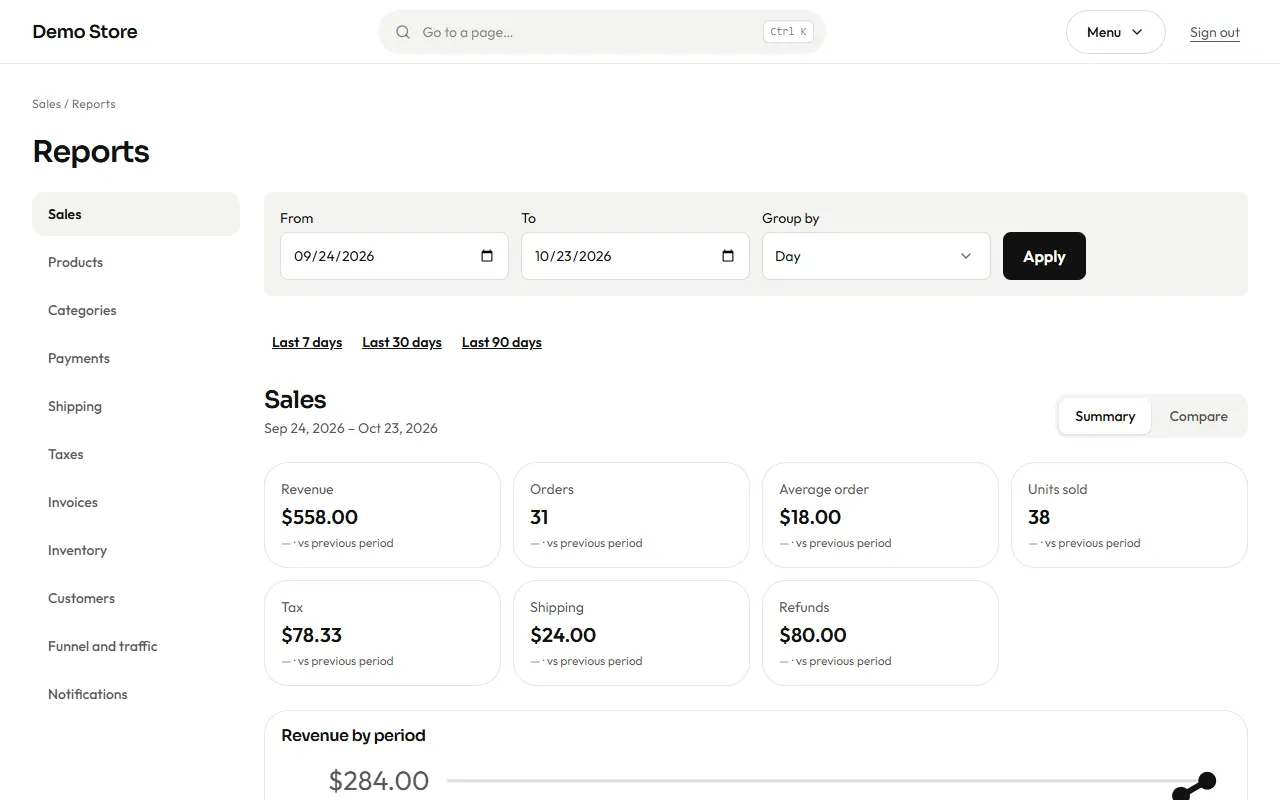
Choosing a report
Section titled “Choosing a report”The list on the left (a row you can swipe, on a phone) is the reports:
| Report | Answers |
|---|---|
| Sales | Revenue, orders, average order, units, tax, shipping and refunds. |
| Products | Best sellers and slow movers. |
| Categories | Which parts of the catalog sell. |
| Payments | How customers pay, and how much each method brings. |
| Shipping | Shipping income and the methods used. |
| Taxes | Tax collected by rate, for your tax return. |
| Invoices | Invoices issued, voided and their totals. |
| Inventory | Stock value, low and out-of-stock items. |
| Customers | New and returning customers, and who buys most. |
| Funnel and traffic | Visitors, product views, carts and purchases, and where they came from. |
| Notifications | Emails and messages sent, failed or skipped. |
Choosing the period
Section titled “Choosing the period”- Set the range. Set From and To, or press Last 7 days, Last 30 days or Last 90 days.
- Group if you need to. For sales you can group the chart by day, week or month. Each number shows how it compares with the period before it.
- Compare. The Compare button (next to Summary) shows each indicator beside the one for the period before it, and the change, in a table.
- Download the CSV. Download CSV exports the report table.
Weekly summary
Section titled “Weekly summary”The store can email a short summary every week. Turn it on, and choose the weekday and hour, in Settings under Reports.