Orders
The order list
Section titled “The order list”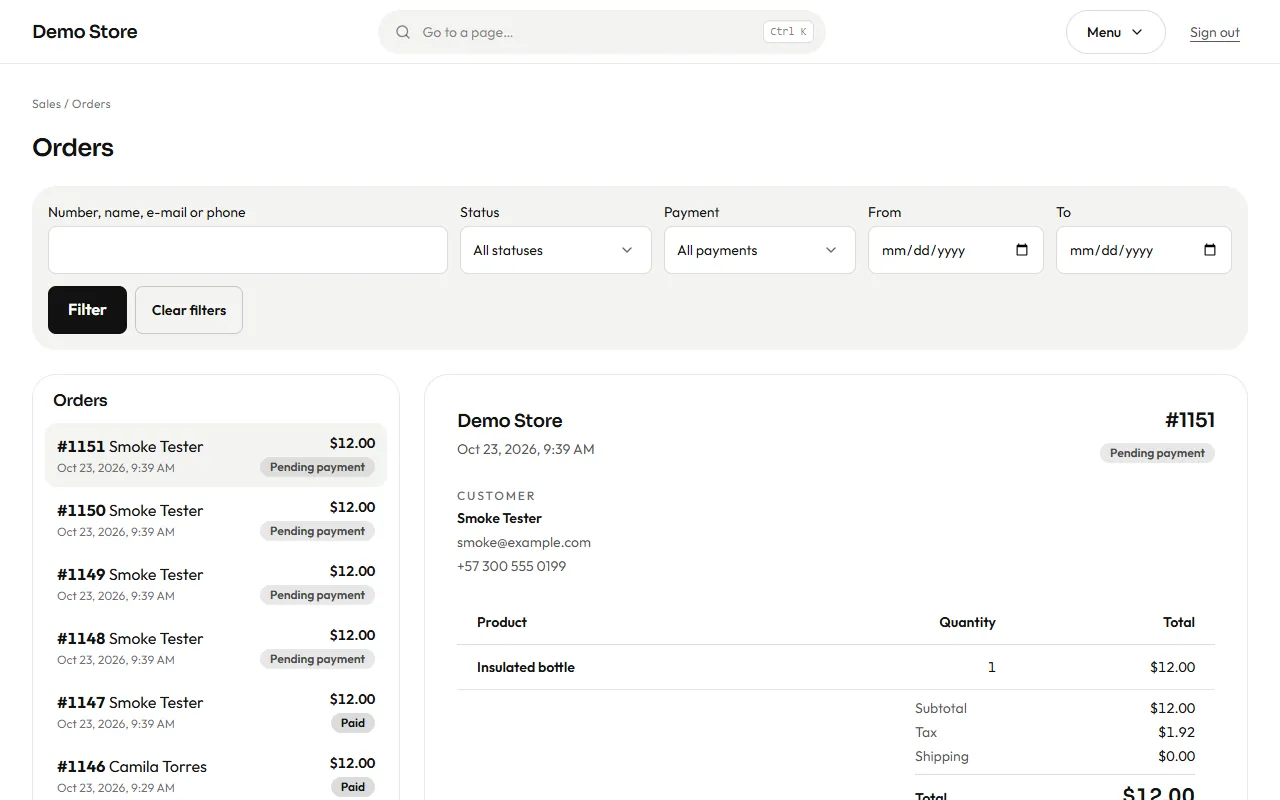
Search by order number, name, email or phone, or filter by status, payment method and a date range. The newest orders are on top.
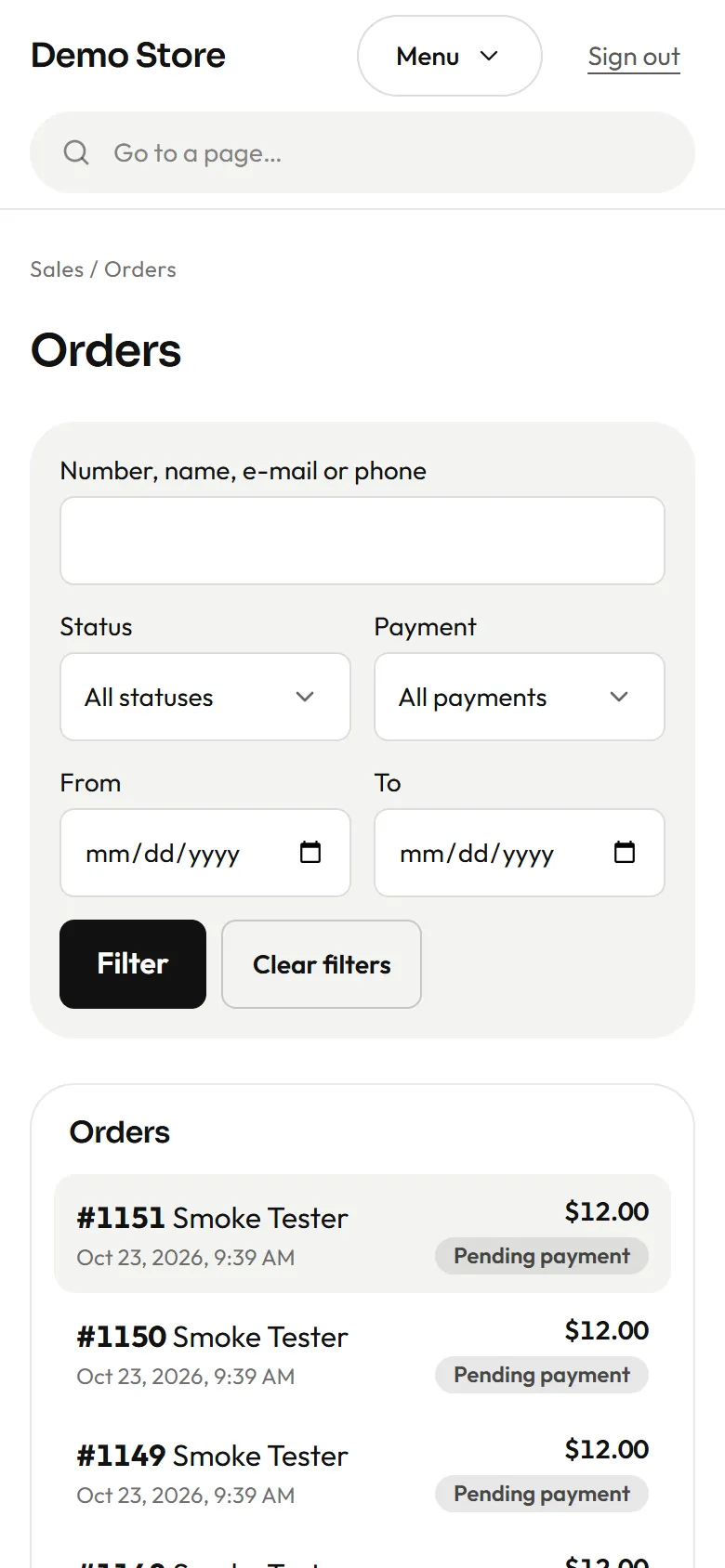
On a wide screen the list stays on the left and the order you choose opens on the right, without leaving the list; the first order of the page is shown when you arrive. On a phone you see only the list, and each order opens on its own page.
On a phone the list becomes cards, so you can process orders from your pocket.
An order
Section titled “An order”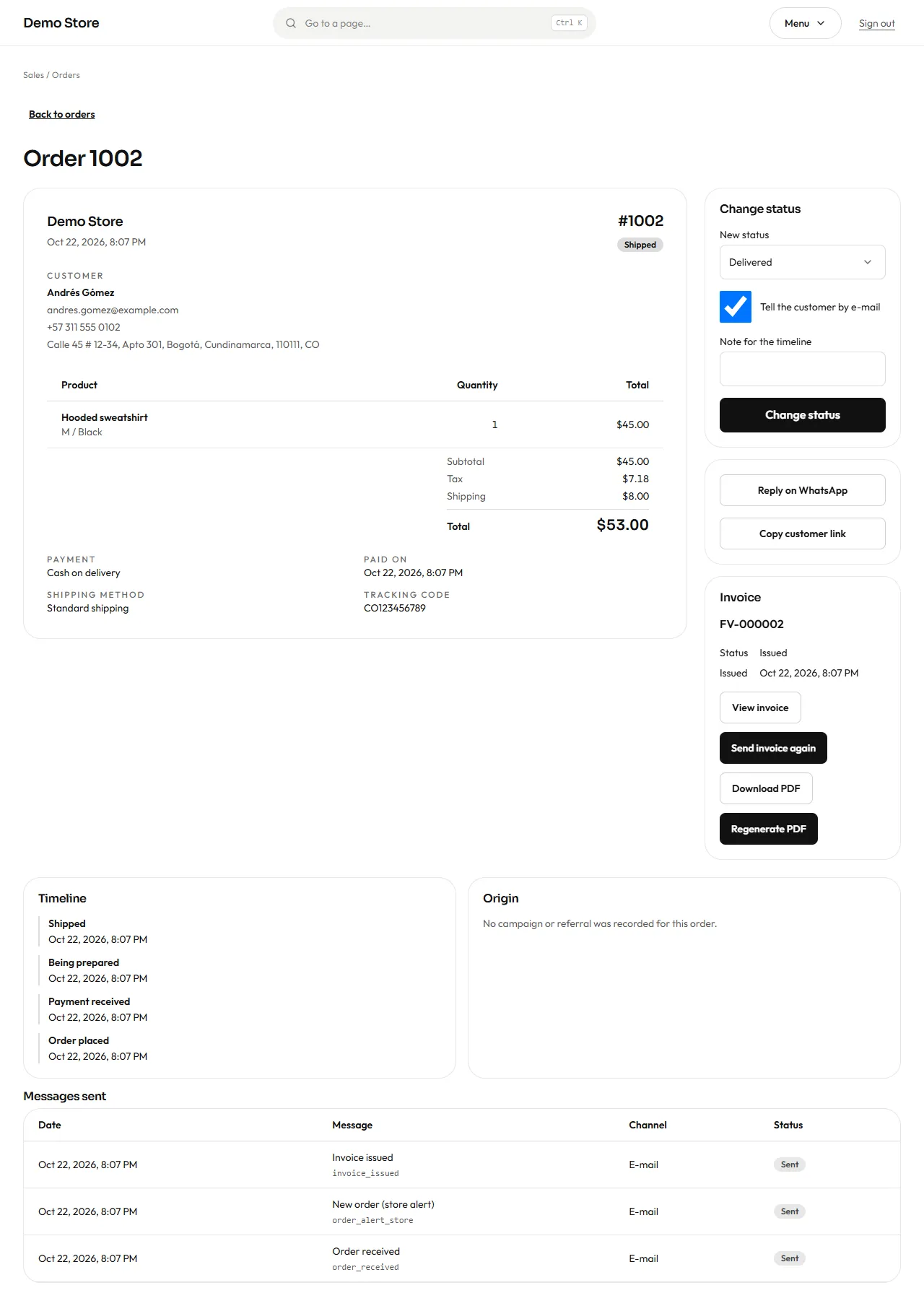
The order looks like a document, like a receipt: the store, the number, the date and the status at the top; then the customer, the items with the totals, and the payment and delivery details. The actions sit to one side (below, on narrow screens), and the timeline, origin and messages at the bottom. Together it has:
- Customer: name, email, phone, plus Reply on WhatsApp (opens a chat with the customer) and Copy customer link (the private order page the customer sees).
- Shipping address, method and tracking code.
- Items, totals and payment: what was bought, the tax, the shipping, and when it was paid.
- Origin: the campaign or referral that brought the customer, when the store recorded one.
- Invoice: its number and status, with buttons to view it, send it again, download the PDF or regenerate the PDF.
- Timeline: every step with its time.
- Messages sent: each email or WhatsApp message for this order and whether it was delivered.
The order states
Section titled “The order states”| State | Meaning | Set by |
|---|---|---|
| Pending payment | The order is placed and waiting for the money. | The store, when the order is placed. |
| Paid | The money arrived. An invoice is issued and the customer is told. | Card and PayPal: automatic. Bank transfer, cash on delivery and WhatsApp: you. |
| Processing | You are preparing it (“Being prepared”). | You. |
| Shipped | It left the shop. Add the tracking code here. | You. |
| Delivered | The customer has it. | You. |
| Cancelled | The order will not happen. Reserved stock goes back to the shelf. | You, or the store when an online payment expires. |
| Refunded | You returned the money outside the store. This only records it. | You. |
Changing the status
Section titled “Changing the status”In Change status, choose the new state, optionally add a note for the timeline, and decide whether to tell the customer by email. A tracking code field appears for Shipped. Press Change status.
Refunds
Section titled “Refunds”On a Paid order paid by card (dLocal Go or PayPal), the owner sees a Refund button with the amount and the provider. It asks for confirmation once, sends the whole payment back to the customer and leaves the order Refunded. PayPal answers at once; dLocal Go takes a moment and notifies the store, so the order becomes Refunded when that notice arrives. The timeline records who asked. Only the full payment is refunded, and only once per order. If the provider refuses (a payment that is too old, say), the button is available again and the reason is shown.
Editors do not see the button. For other methods (bank transfer, cash), set Refunded after you return the money. A partial refund is made in the provider’s dashboard and the order stays Paid.