Inventory
The inventory screen is the fastest way to see and change stock for every variant, without opening each product.
Reading the screen
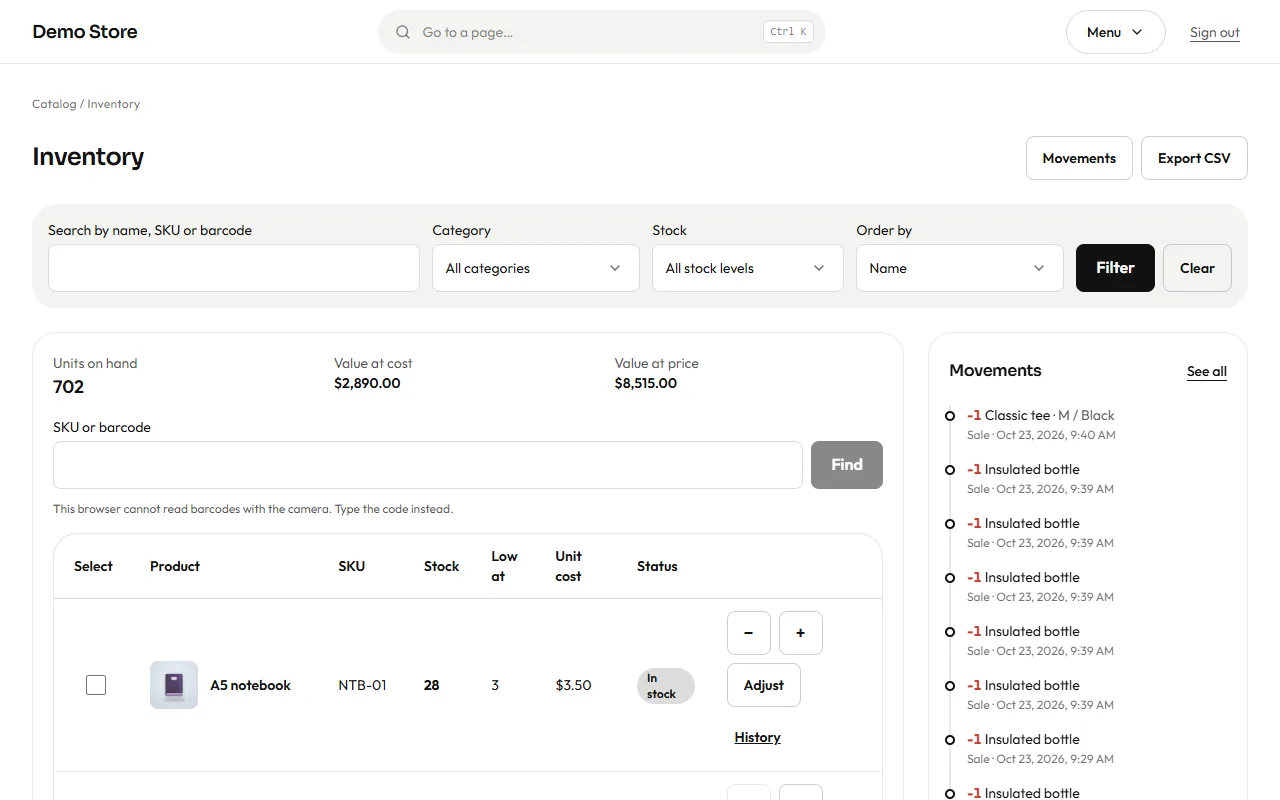
Section titled “Reading the screen”- Units on hand, Value at cost, Value at price at the top add up everything you currently hold, using each variant’s cost and price.
- Filter by name, SKU or barcode, by category, or by stock level (all, in stock, low, out of stock), and sort by name or stock.
- Each row shows the stock, the Low at level (when the store warns you) and a status: In stock, Low or Out.
- Beside the table (below it, on a phone) you see the eight latest stock changes as a timeline: how many units, which product, the reason and when. See all opens the full history.
- Find by SKU or barcode jumps straight to a variant. On a phone, Scan barcode uses the camera where the browser supports it; otherwise type the code.
Changing stock
Section titled “Changing stock”- − / + change the stock by one.
- Adjust opens a panel where you either add or remove a quantity, or set to a counted value (what you counted on the shelf). Choose a reason (Restock, Manual adjustment, Customer return or Damaged or lost) and an optional note.
- Tick several rows (up to 50) and press Adjust selected to change many variants at once.
- Import a count sheet: upload a CSV file (up to 2 MB) with the columns
sku,mode(setto fix the stock oraddto add to it) andquantity, and optionally the cost. Check file first shows what would change and any rows with problems, and nothing is saved until you press Apply import. Export CSV gives you the current list for a spreadsheet.
Sales and cancellations change stock automatically: an order takes stock when it is placed, and a cancelled or expired order puts it back.
Low and out-of-stock alerts
Section titled “Low and out-of-stock alerts”When a variant reaches its low-stock level, the store sends a single email listing all the variants that crossed the line (so a big import does not flood your inbox). When a sold-out variant is restocked, shoppers who asked to be told are notified once. The default low-stock level is set in Settings (Inventory) and can be changed per variant.
History
Section titled “History”Every change is recorded, forever: who made it, when, the reason, the quantity and the stock before and after. Open History on a row for one variant, or Movements at the top for all of them.
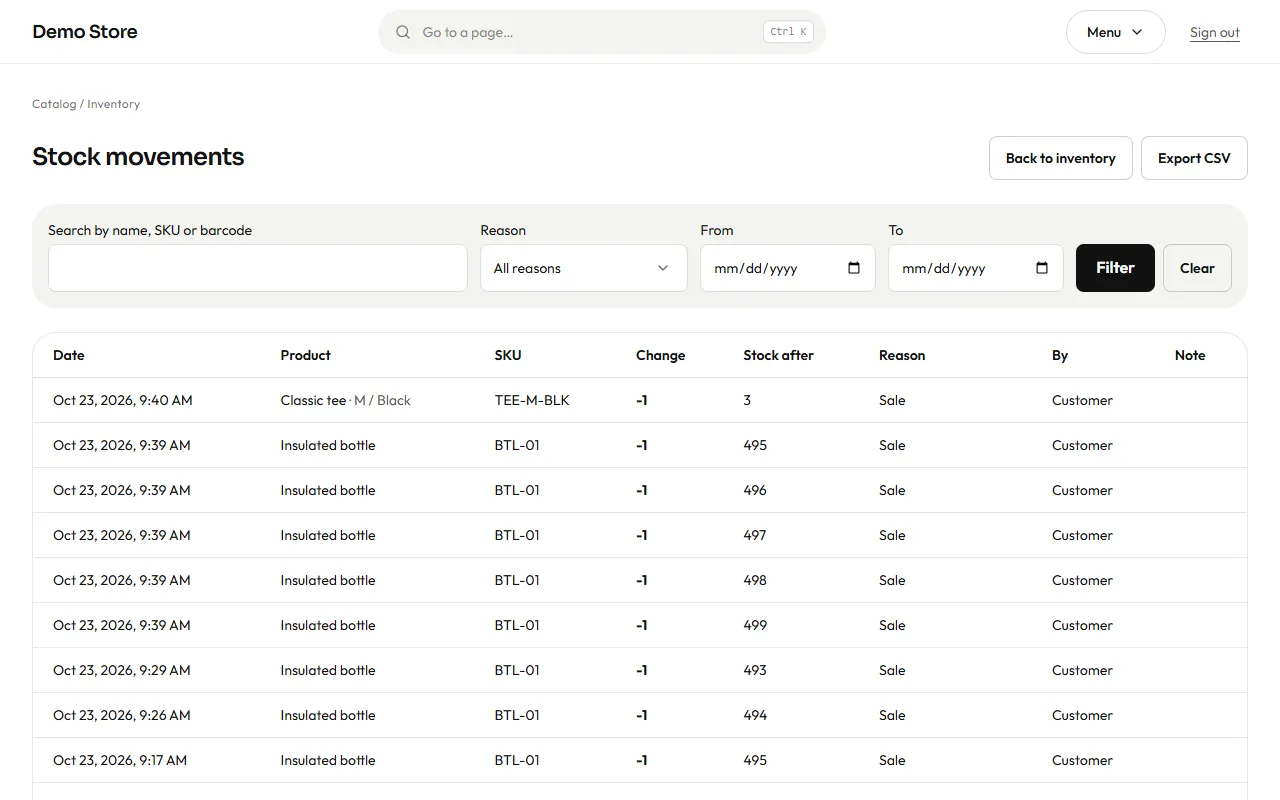
Use it to answer “why is this number what it is?”: a sale shows the order number, a manual change shows the person and the note. Movements can be exported to CSV too.