Admin overview
The admin is where the people who run the shop work. It lives at /admin on your store’s address (for example
https://your-shop.com/admin) and works on a phone or a laptop.
Signing in
Section titled “Signing in”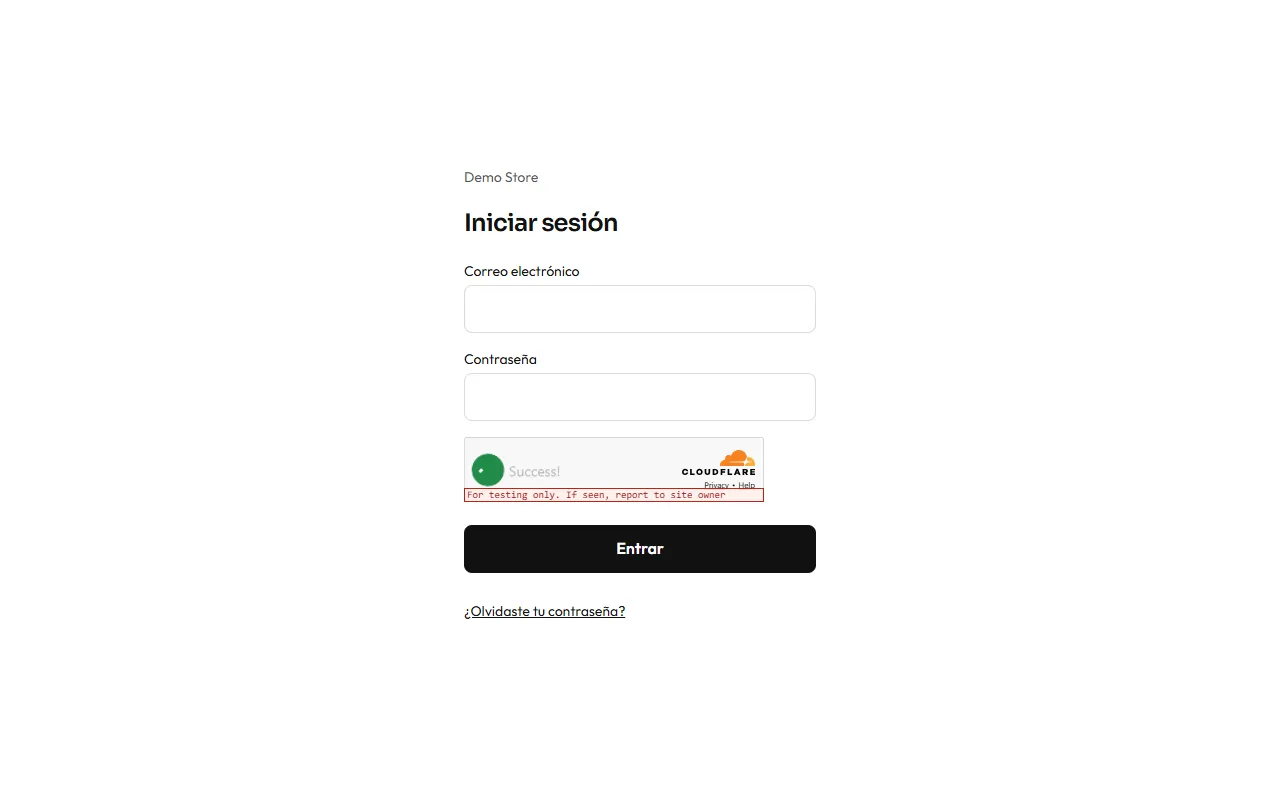
Enter your email and password. If you forgot the password, choose Forgot password and the store emails you a link that is valid for 30 minutes. There is a limit on sign-in attempts and a bot check, so guessing passwords does not work.
The dashboard
Section titled “The dashboard”The first screen shows how the shop is doing right now.
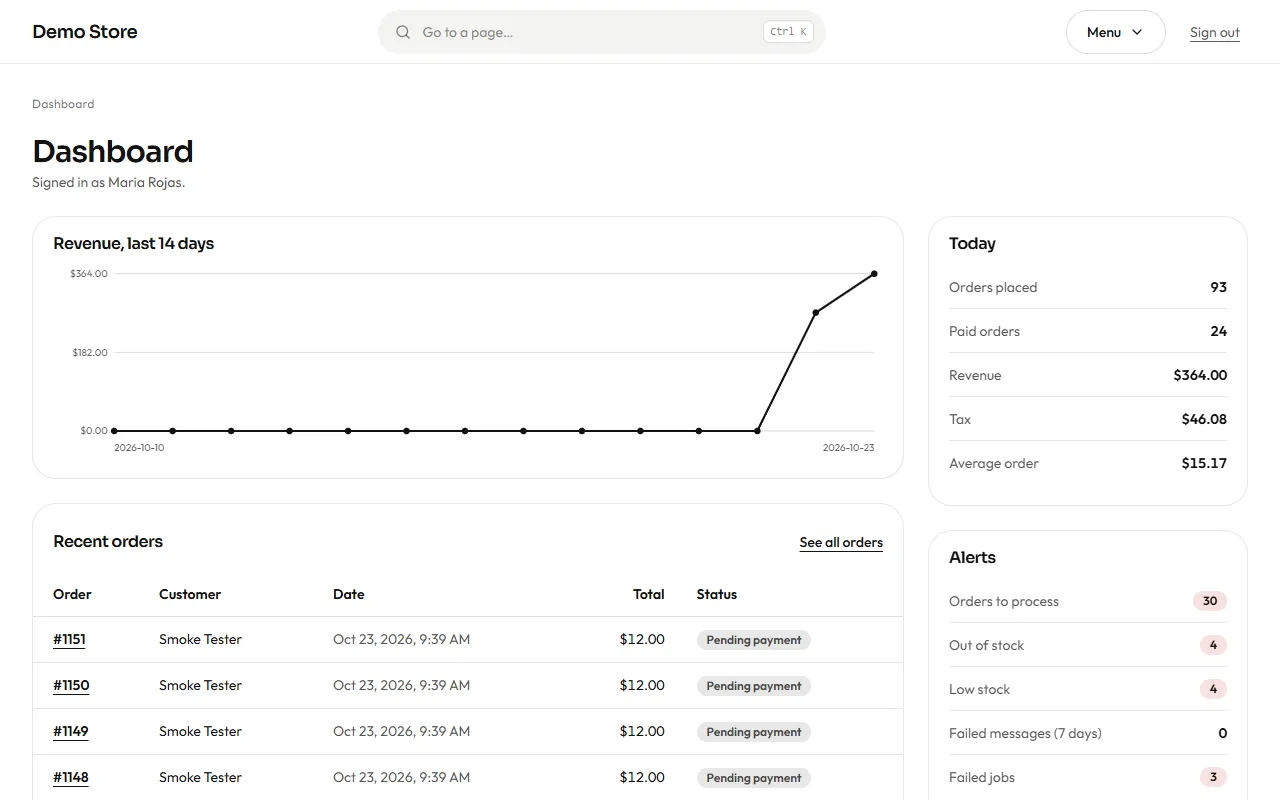
The screen has two columns. On the left:
- A chart of revenue for the last 14 days.
- Recent orders: the six newest, with customer, date, total and status. Click the number to open an order, or See all orders.
- Top products of the last 30 days.
On the right, which stays in view while you scroll the left:
- Today: orders placed, paid orders, revenue, tax and the average order.
- Alerts: orders to process, out of stock, low stock, failed messages and failed jobs. Each row leads to the list behind its number. They should be 0, except the orders to process; see Messages and notifications.
- Other periods: revenue and paid orders for the last 7 and 30 days.
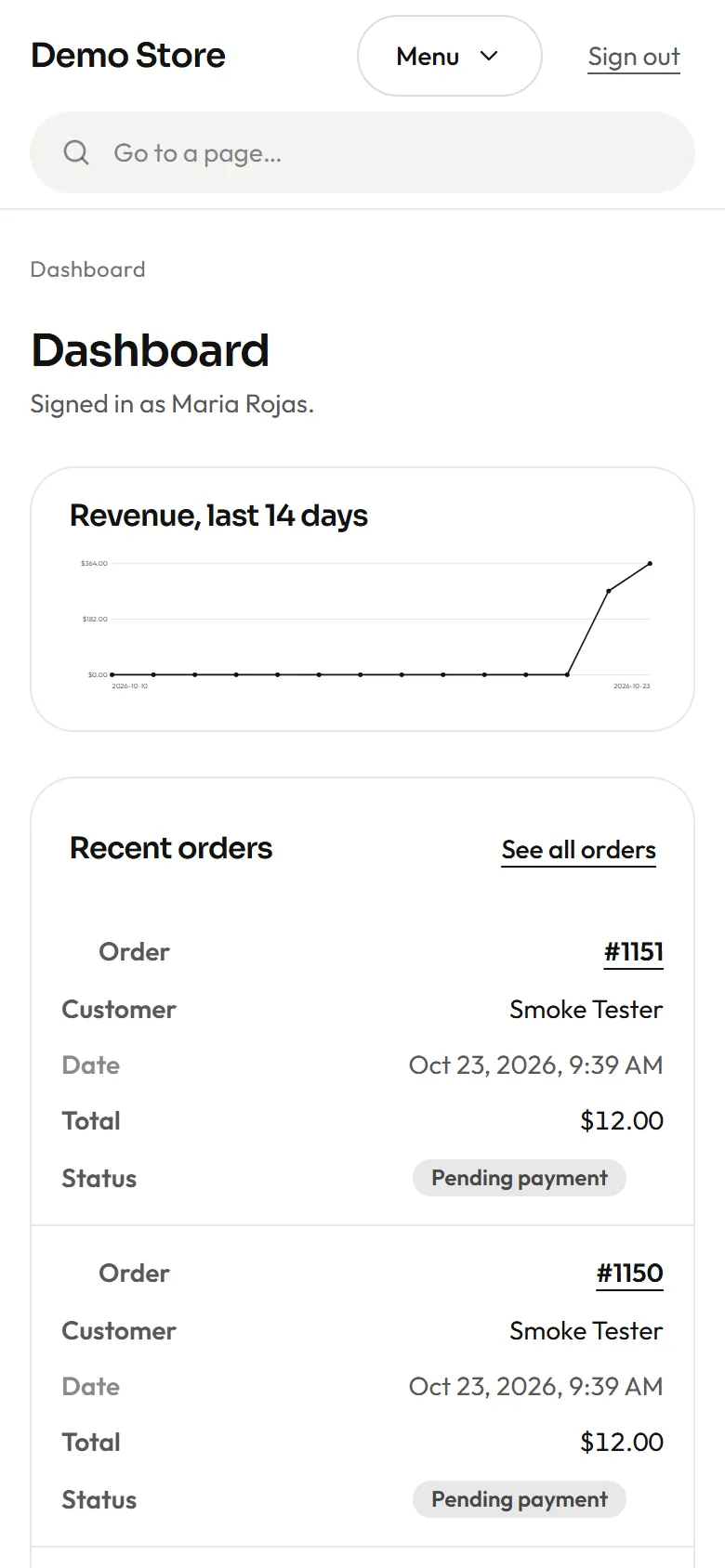
On a phone the two columns stack into one.
The menu and the search
Section titled “The menu and the search”The bar at the top has the store name, a search box, the Menu button and Sign out.
- Menu opens every page of the admin in five sections: Catalog (Products, Categories, Attributes, Media, Inventory), Sales (Orders, Invoices, Shipping, Reports), Content (Pages, Testimonials, Emails), Messaging (WhatsApp, Message log, Failed jobs) and Store (Settings, Users). This guide follows nearly the same order.
- The search box (“Go to a page…”) filters those pages as you type; Enter opens the first one. On a laptop, Ctrl K (or ⌘ K) puts the cursor in the search box from any page, and Esc closes the menu.
- Above each page title a small line shows the section and the page (“Sales / Orders”), so you always know where you are.
Roles: who can do what
Section titled “Roles: who can do what”There are two roles.
| Can… | Editor | Owner |
|---|---|---|
| Manage products, categories, attributes and media | ✔ | ✔ |
| Process orders and change their status | ✔ | ✔ |
| Adjust and import stock | ✔ | ✔ |
| Edit pages, testimonials and email wording | ✔ | ✔ |
| Change settings (tax, checkout, payment, WhatsApp…) | ✔ | |
| Void an invoice | ✔ | |
| Invite and manage users | ✔ | |
| Retry or discard failed jobs, connect WhatsApp | ✔ |
Give people the Editor role for daily work and keep the Owner role for the people who run the business. Permissions are checked on the server, so a hidden button is never the only protection.