Products
The product list
Section titled “The product list”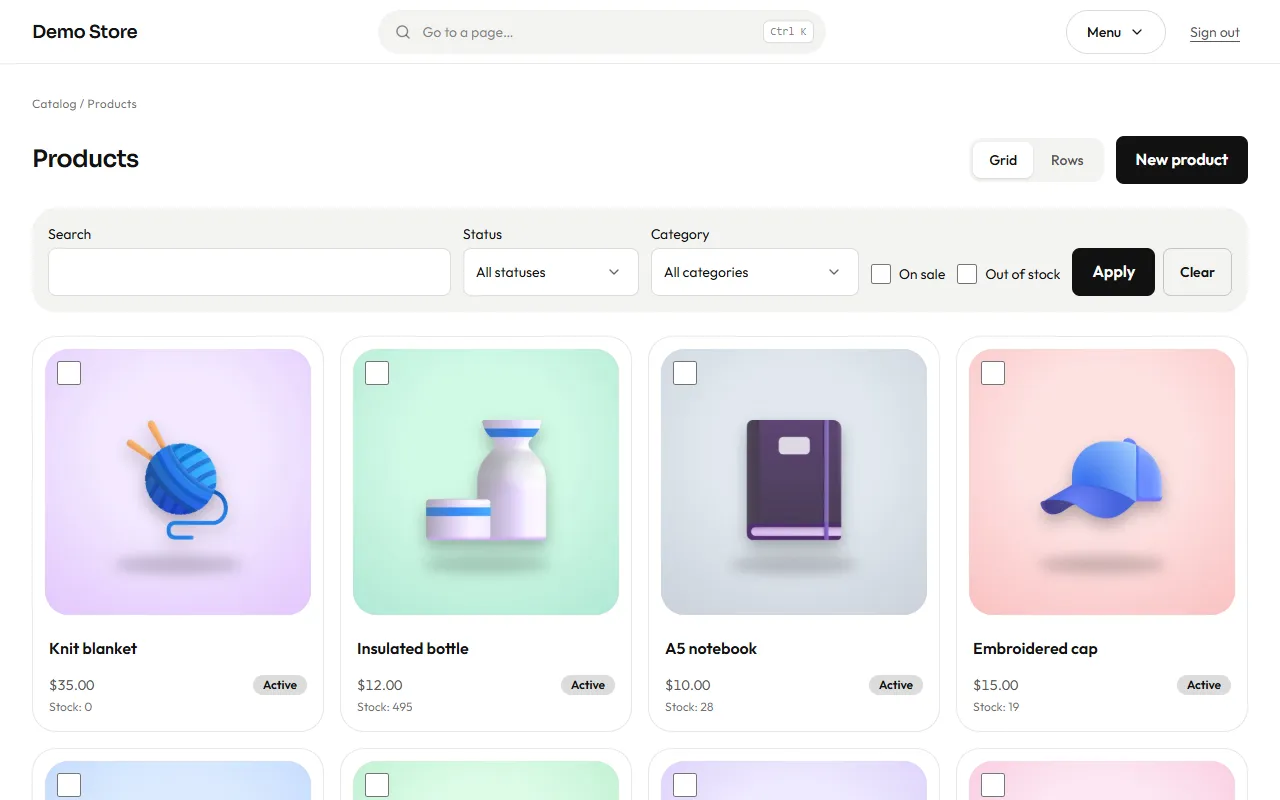
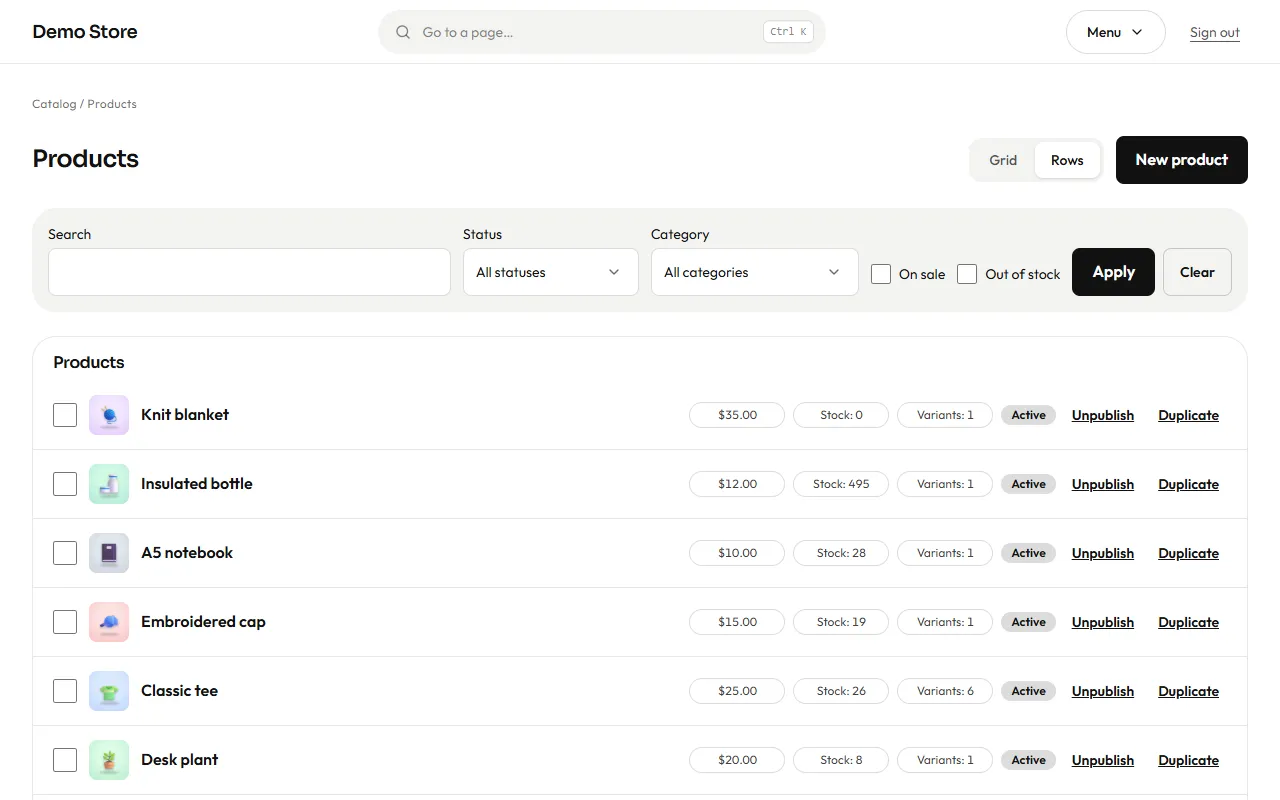
Find products with the search box or the Status, Category, On sale and Out of stock filters. At the top right you choose how to see them:
- Grid: one card per product with its picture, name, price, status and stock. It is the view for recognising a product at a glance. A product without a picture shows its initial.
- Rows: one row per product with price, stock and the number of variants, and two quick actions: Unpublish / Publish (hide a product from the shop without deleting it) and Duplicate (start a new product from an existing one, handy for similar items).
The view is kept in the address (?view=rows for rows; the grid is the default), so you can bookmark or share it.
Changing several products at once
Section titled “Changing several products at once”Tick the box of each product, in either view. A bar appears at the bottom with “N selected”, Unpublish and Publish: the change applies to everything ticked in one request (up to 100). Products that no longer exist are ignored.
Press New product to add one.
Editing a product
Section titled “Editing a product”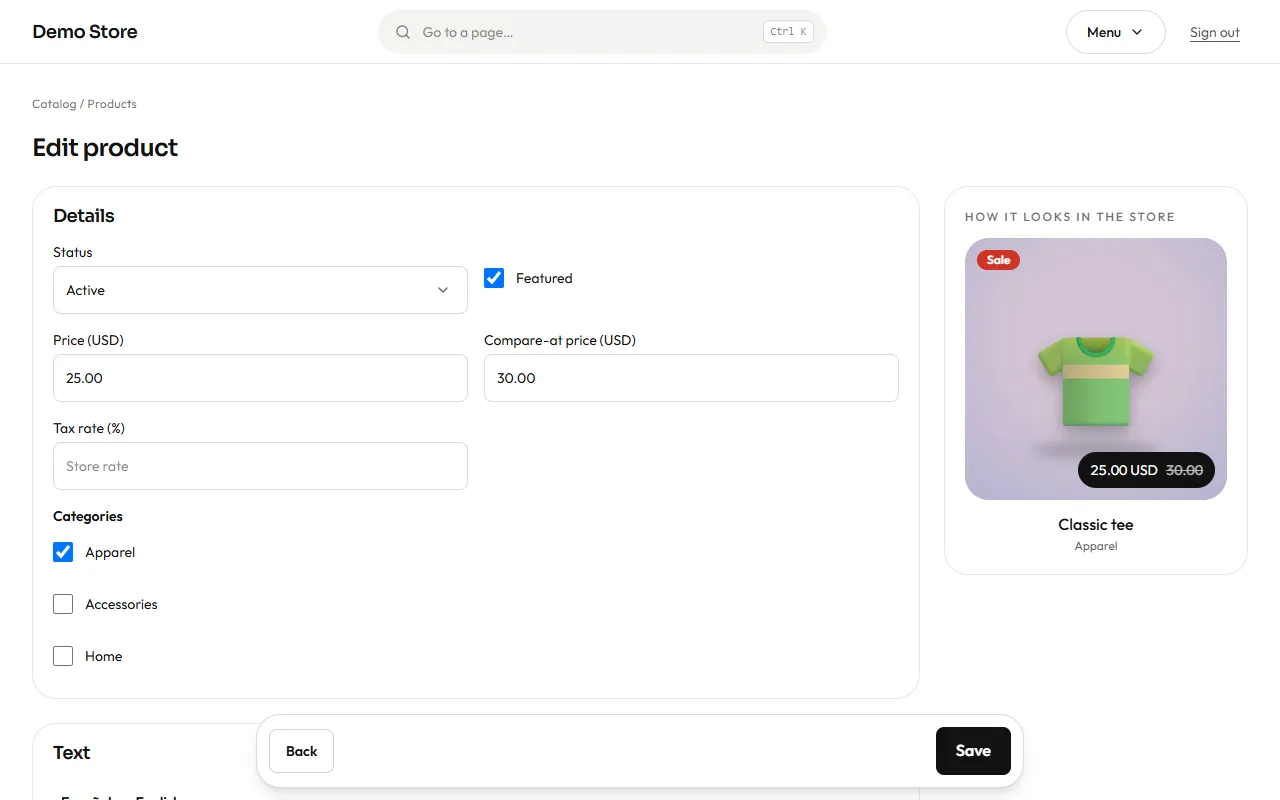
Details
- Status: Draft (not visible), Active (for sale) or Archived (kept but hidden).
- Featured: shows the product in featured blocks on the home page.
- Price and Compare-at price: the compare-at price is the old price that is crossed out when you run a sale. Money is
entered in the store currency, for example
25.00. - Tax rate: leave empty to use the store’s rate, or set a different one (for example 0% for a tax-free item).
- Categories: tick one or more.
Text has a tab for each language. Write the name, short description and a longer description in Markdown (use **bold**,
lists and links). The slug is the web address of the product in that language; leave it empty and it is made from the name.
SEO title and SEO description are what Google shows; if you leave them empty the store writes sensible ones.
Preview: on the right (below, on a phone) the store draws the product’s card from what you type: picture, name, price, sale badge and category. It changes as you type, before you save.
Images: add pictures from the media library, drag them with the arrows to reorder them. The first one is the product’s main picture and appears in listings and when a link is shared.
Options (variants)
Section titled “Options (variants)”Many products come in sizes or colours. Each combination is a variant with its own SKU, barcode, stock and, if needed, its own price.
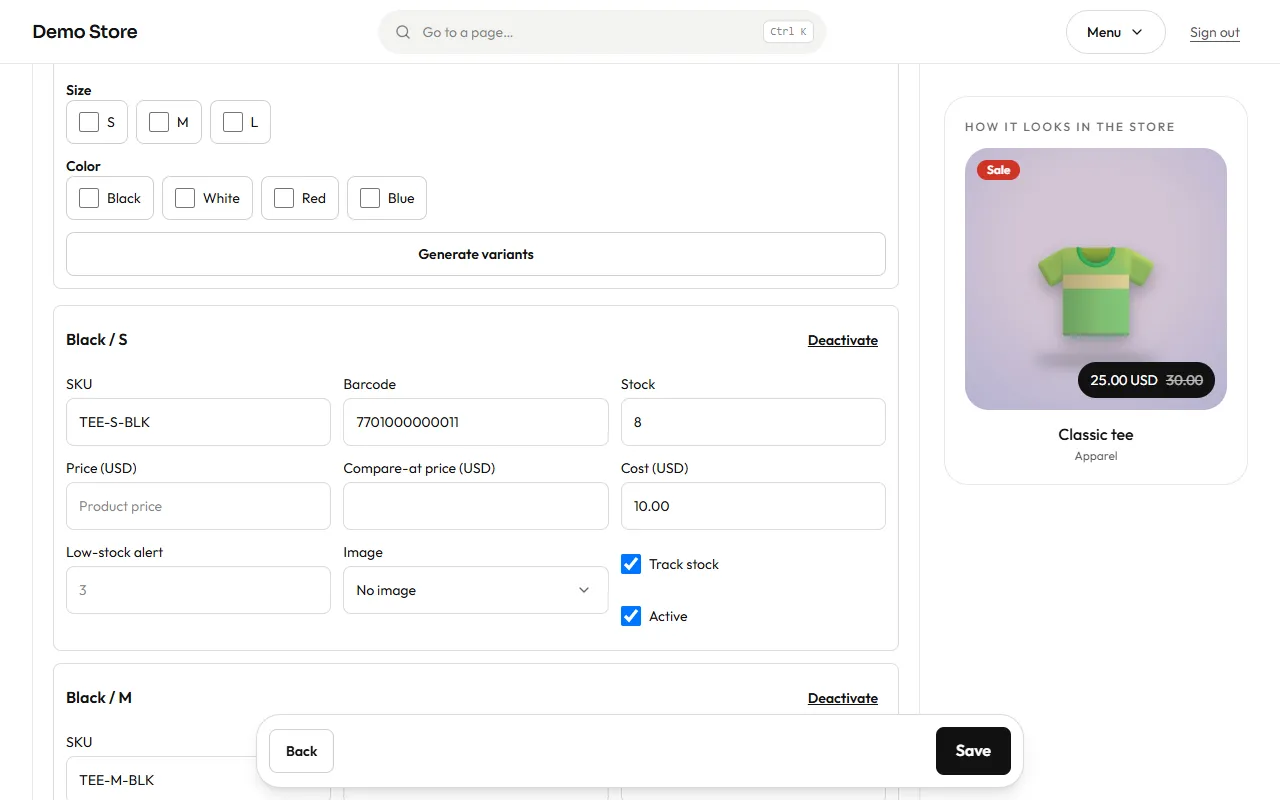
- Under Generate variants from attributes, tick the values you sell (for example sizes S, M, L and colours Black, White).
- Press Generate variants. The store creates every combination.
- Fill in each variant: SKU (your code), Barcode, Stock, Cost (what it costs you, used in inventory value and reports), an optional Price if this option costs more, a Low-stock alert level, and an optional picture.
- Track stock turns stock counting on or off (turn it off for services or made-to-order items). Deactivate hides a variant without losing its history.
A product with no sizes or colours has a single variant; the form still shows it so you can set its SKU and stock.
Press Save. The Note for stock changes field at the bottom is saved with any stock change you made, so the inventory history shows why.
Categories, attributes (sizes, colours) and pictures are set up in Catalog setup.